
The Steam Deck is still the best way for most new handheld gamers to play an existing Steam library on the go, and the OLED model is the version you should buy if your budget stretches to it. The LCD model remains a capable entry point when you find it cheap refurbished, but competitive players need to know before checkout that several of the biggest anti-cheat shooters will not run on it at all.
The short verdict
If you already own dozens of games on Steam, a Steam Deck turns that library into a portable console with almost no friction. You keep your saves through Steam Cloud, you keep your purchases, and the Deck Verified system tells you in advance which games will run well. No other handheld matches that combination of price, library access and software polish.
The case against it is narrower than most reviews suggest, but it matters. The Deck runs a Linux-based operating system, so games that use kernel-level or Linux-blocked anti-cheat are off the table without installing Windows. Its custom AMD chip launched in 2022, and newer Windows handhelds now beat it on raw frame rates in demanding releases. If your main game is Valorant, Fortnite, Apex Legends or Call of Duty, you are buying the wrong device.
For everyone else, the decision comes down to which model, which storage tier and whether a refurbished unit makes more sense than a new one. The rest of this guide covers those choices in the order you should make them.
Steam Deck models: OLED vs LCD
Valve has sold two generations of the hardware. The original LCD Steam Deck launched in February 2022, and the Steam Deck OLED followed in November 2023 with a better screen, a bigger battery, a more efficient 6nm chip and faster wireless. Performance in demanding games is broadly similar because the CPU and GPU core counts did not change, but almost everything you touch and see improved.
| Spec | Steam Deck LCD | Steam Deck OLED |
|---|---|---|
| Screen | 7-inch IPS LCD, 1280 x 800 | 7.4-inch HDR OLED, 1280 x 800 |
| Refresh rate | Up to 60Hz | Up to 90Hz |
| Brightness | 400 nits | 600 nits SDR, 1,000 nits peak HDR |
| APU | AMD Zen 2 (4C/8T) + RDNA 2 (8 CUs), 7nm | Same core layout, 6nm |
| Memory | 16GB LPDDR5, 5,500 MT/s | 16GB LPDDR5, 6,400 MT/s |
| Battery | 40Wh | 50Wh |
| Valve battery estimate | 2 to 8 hours | 3 to 12 hours |
| Wireless | Wi-Fi 5, Bluetooth 5.0 | Wi-Fi 6E, Bluetooth 5.3 |
| Weight | About 669g | About 640g |
| Storage at OLED launch | 256GB NVMe (64GB eMMC and 512GB dropped) | 512GB or 1TB NVMe |
| Launch price | $399 (64GB, 2022), cut to $399 for 256GB in Nov 2023 | $549 (512GB), $649 (1TB) |
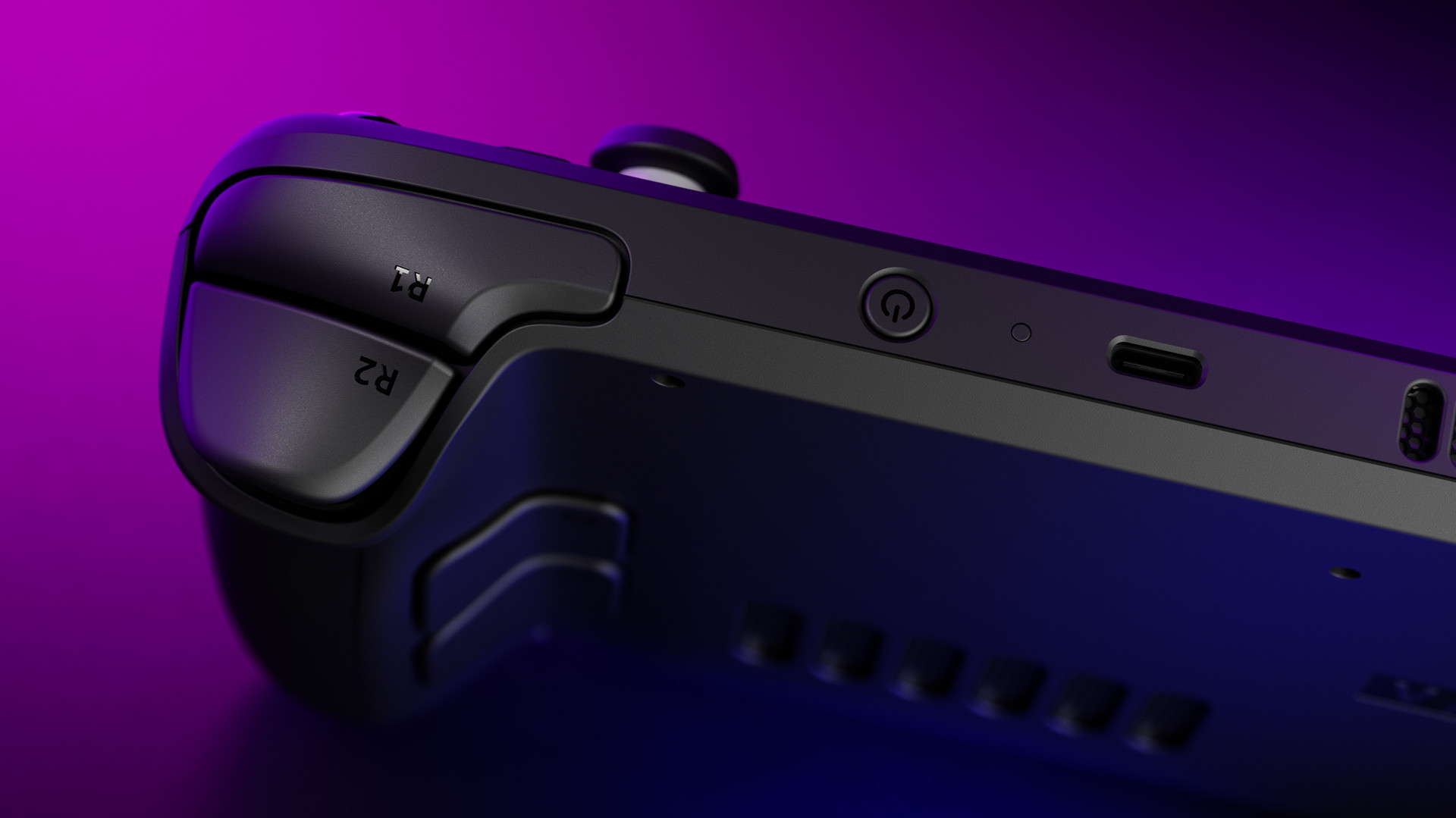
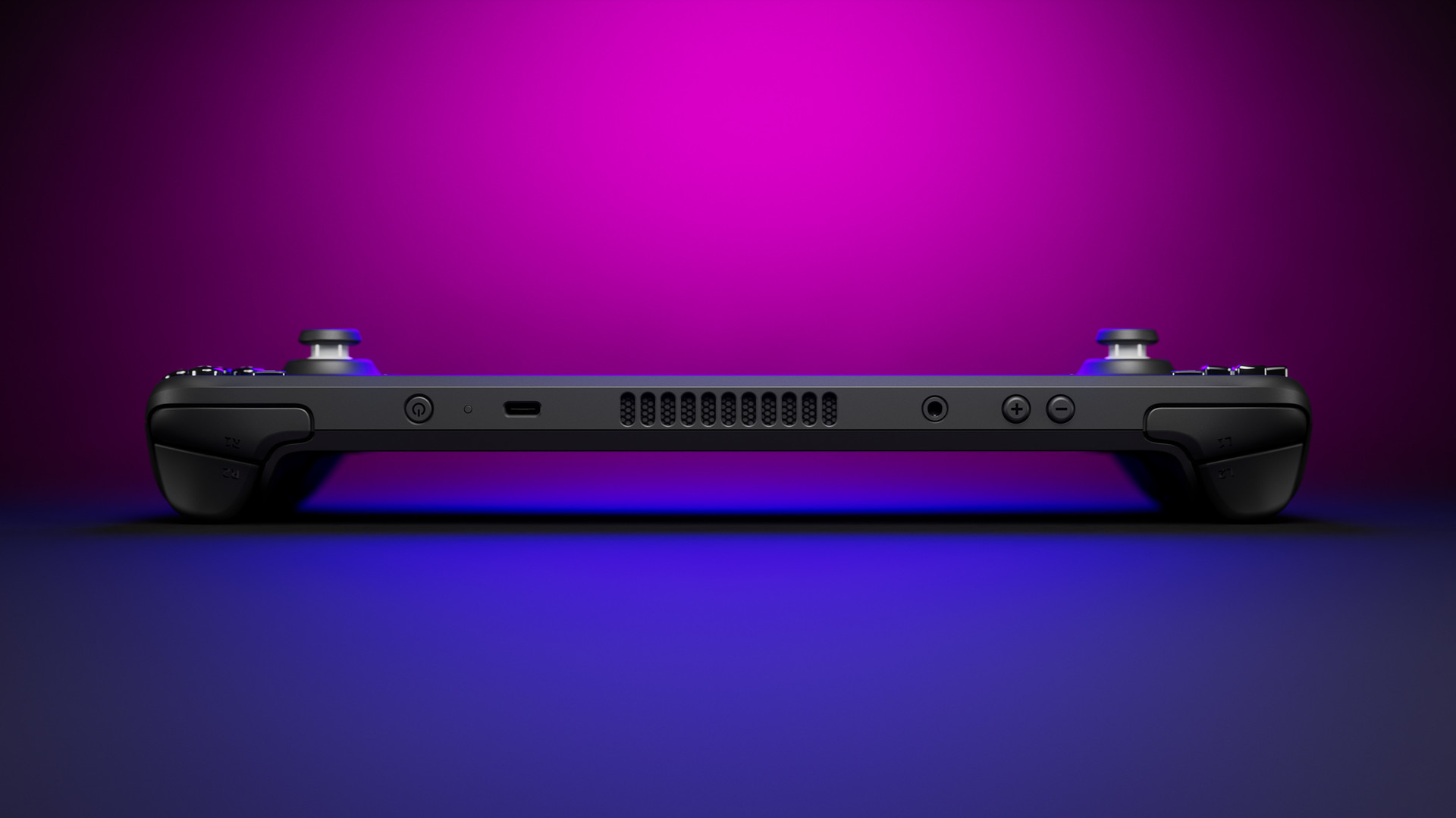
Both models share a single USB-C port with DisplayPort 1.4 Alt Mode, a UHS-I microSD slot, a 3.5mm headphone jack, two haptic trackpads, a six-axis gyroscope and four rear grip buttons labelled L4, L5, R4 and R5. Both ship with a 45W USB-C Power Delivery charger, and the OLED version adds a longer 2.5m cable.
Why the OLED is worth the extra money
The OLED screen is the single biggest upgrade, and it changes how games look more than any settings tweak can. Blacks are true black, colours cover a much wider gamut, and HDR games finally look like HDR. The jump from 60Hz to 90Hz also gives you more frame rate targets that divide cleanly into the refresh rate, which matters on hardware that rarely holds a locked 60 in new releases.
Battery life is the second reason. The 50Wh cell combined with the more efficient 6nm chip gives you noticeably longer sessions in the same game at the same settings, and the lower power draw also means less fan noise during light play. Wi-Fi 6E makes a real difference if you stream games from a gaming PC elsewhere in the house, because the 6GHz band is far less congested than the 5GHz band most routers lean on.
When the LCD still makes sense
Valve stopped making the 64GB and 512GB LCD models when the OLED arrived and has since wound down LCD supply, so in most regions you will find the LCD refurbished or second-hand rather than new. At a clear discount, it is a sensible buy if you mostly play older or lighter games, plan to dock it to a TV, or want a second unit for a child. Do not pay near OLED money for one, because the screen and battery gap is too large to justify it.
512GB or 1TB OLED?
The 1TB OLED adds an anti-glare etched glass screen, a premium carrying case with a removable liner and exclusive interface touches, on top of double the storage. The etched glass genuinely helps outdoors and near windows, though it slightly softens image sharpness. If you mainly play at home, buy the 512GB model and put the difference toward a fast 512GB or 1TB microSD card, which gives you more total space for less money.
What the hardware is like in your hands
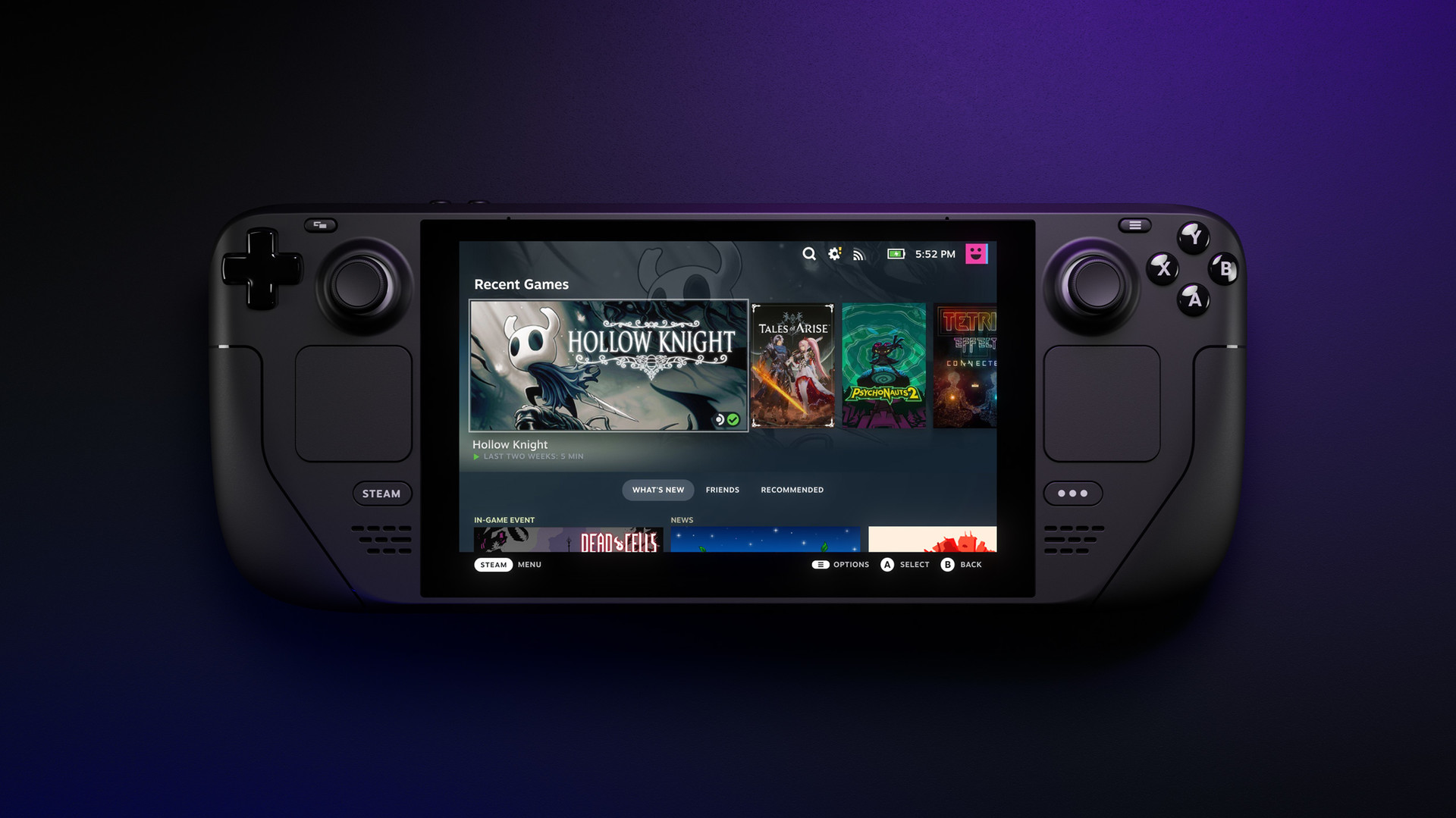
The Steam Deck is large for a handheld. It is wider and heavier than a Nintendo Switch, and the first hour can feel cumbersome if you are used to a phone. The trade-off is ergonomics: the deep grips and full-size sticks make long sessions far more comfortable than on slimmer handhelds, and most players stop noticing the size within a week.
Controls and input
The face buttons, D-pad, bumpers and analogue triggers feel close to an Xbox controller, so muscle memory carries over cleanly. The capacitive thumbsticks detect your touch, which lets you set gyro aiming to activate only when your thumb rests on the right stick, a setup many players use for precise shooter aim. The two square trackpads are the Deck’s secret weapon for mouse-driven games like strategy titles, MOBAs and older PC classics that never had controller support.
The four rear buttons are the feature you will miss most on other devices. You can map them to anything through Steam Input, including keyboard keys, mouse clicks, radial menus or action sets that change with context. Community controller layouts are shared through Steam, so for most popular games you can pick a highly rated layout instead of building one from scratch.
Screen, speakers and noise
At 1280 x 800, the resolution sounds low, but on a 7 to 7.4-inch panel held at arm’s length it looks sharp, and it keeps the GPU’s workload manageable. The 16:10 aspect ratio gives you a little extra vertical space in games that support it. The stereo speakers are clear and loud for the size, and the OLED model improved bass.
Fan noise is the most common complaint on the LCD model under heavy load. The OLED model runs a larger, quieter fan, and both models get much quieter once you cap the frame rate and power budget, which you should do anyway for battery reasons.
Performance: what actually runs well
Raw specs only tell part of the story. The Deck’s GPU is modest by 2025 standards, but because it targets 800p and SteamOS has very little background overhead, it punches above its weight in games that are well optimised.
How compatibility works
SteamOS runs Windows games through Proton, Valve’s compatibility layer built on Wine and related translation tools like DXVK and VKD3D-Proton. You never have to configure Proton for most games; you press Install and Play like on any console. Behind the scenes, Valve tests games and assigns each one a Deck Verified rating, which appears on store pages and in your library.
| Rating | What it means | What you should expect |
|---|---|---|
| Verified | Works fully with built-in controls and display | Plays out of the box with default settings |
| Playable | Works, but needs some manual effort | May need a touchscreen tap, a custom layout or small text tolerance |
| Unsupported | Does not currently work on Steam Deck | Usually blocked by anti-cheat, a VR requirement or a crash |
| Unknown | Not yet tested by Valve | Check community reports before buying |
Valve’s testing covers four areas: input, display legibility at 800p, seamlessness (no awkward launchers or unsupported pop-ups) and system support, which includes whether Proton runs the game and whether its anti-cheat permits Linux.
Realistic expectations by game type
Indies, 2D games and older AAA titles are where the Deck shines. Games like Hades, Stardew Valley, Vampire Survivors, Hollow Knight and Celeste run at high frame rates with long battery life. Rhythm and precision platformers are a strong fit too; Geometry Dash runs smoothly and the D-pad and face buttons give you consistent input timing, which you will appreciate if you are working through early levels.
Mid-range and well-optimised modern games, including many 2022 to 2024 releases, typically land between 30 and 60 fps at low to medium settings. Recent heavyweight releases are the stress test, and some struggle to hold 30 fps even with upscaling. If a new AAA game is the main reason you are buying a Steam Deck, read Deck Verified status and community frame rate reports first, because the hardware’s age shows most in that category.
Analyst note
A 40 fps cap on a 40Hz refresh rate delivers a steady 25ms frame time, against 33.3ms at 30 fps. That 8ms gap is why many Deck players treat 40/40 as the sweet spot on the LCD model, and why 45 fps at 90Hz works so well on the OLED.
Competitive games and anti-cheat: an analyst’s view
This is the section most buying guides gloss over, and it is the one that matters most to anyone who plays ranked. Anti-cheat systems need developers to explicitly allow Linux and Proton, and several of the biggest competitive games have chosen not to.
What does not work natively
- Valorant: Riot’s Vanguard anti-cheat runs at kernel level on Windows and does not support Linux, so it will not run on SteamOS.
- Fortnite: Epic has not enabled Easy Anti-Cheat for Linux in Fortnite, and the game is not on Steam. You can play it through cloud services instead.
- Apex Legends: Respawn blocked Linux players, including Steam Deck users, in late 2024, citing cheating, which removed a game that previously ran well.
- Destiny 2: Bungie has not enabled BattlEye for Linux.
- Call of Duty: Activision’s Ricochet anti-cheat does not support Linux, so current multiplayer modes are unavailable.
Anti-cheat stances change, so check a game’s Deck Verified rating and recent community reports before you buy anything on the assumption it will work.
What does work
Valve’s own games are the obvious exceptions. Counter-Strike 2 and Dota 2 both run on SteamOS, and the trackpads make Dota surprisingly playable. Many fighting games, sports titles and team shooters with Linux-friendly anti-cheat also work, along with nearly every co-op and single-player game.
Should you use it for ranked at all?
As someone who watches competitive play closely, the honest answer is no for serious ranked grinding. An 800p screen at 60 or 90Hz, stick or trackpad aim and a modest GPU put you at a measurable disadvantage against players on a 240Hz monitor with a mouse. The Deck is excellent for casual matches, warm-ups away from your desk, learning maps and practising game knowledge, but your ranked hours belong on a desktop or a gaming laptop where your settings, sensitivity and refresh rate match your best setup.
Cloud gaming as a workaround
Cloud streaming sidesteps anti-cheat entirely because the game runs on a remote server. Xbox Cloud Gaming works through a browser in the Deck’s desktop mode, with a shortcut you can add to Gaming Mode, and NVIDIA GeForce Now offers a similar route that includes Fortnite. Latency rules out cloud play for competitive shooters at any serious level, but it is fine for casual matches and for testing games before you buy them. Turn off Wi-Fi power management in the developer settings to cut stutter during streams.
Installing Windows
Valve publishes Windows drivers for the Steam Deck, and you can install Windows to an SSD or dual-boot. Doing so unlocks some anti-cheat games, but you lose the console-like Gaming Mode, battery life usually drops, and you take on driver maintenance and Windows updates. For a new handheld player, it is rarely worth it; if you need Windows-only games, a Windows handheld makes more sense.
Battery life in real terms
Valve’s ranges of 2 to 8 hours for the LCD and 3 to 12 hours for the OLED are accurate, but the spread tells you how much your settings matter. The low end is a demanding 3D game running uncapped at full brightness. The high end is a 2D indie or a streamed game at a modest brightness level.
In practice, plan for roughly two hours on the LCD and close to three on the OLED in demanding modern games without caps, and a full evening or a long flight in lighter titles. The fastest wins come from capping the frame rate, lowering screen brightness and using a power limit on games that do not need full performance.
The single USB-C port supports USB Power Delivery, so any quality 45W or higher PD power bank keeps you going on long trips. Check your airline’s rules on carry-on battery capacity before you fly with one; most allow power banks up to 100Wh without approval.
Storage: internal SSD vs microSD
Storage is where you can save the most money with the least compromise. Modern games are large, and a single big release can take more than 100GB, so the base storage tier fills quickly.
| Storage option | Typical speed | Best use | Notes |
|---|---|---|---|
| Internal NVMe SSD (OLED, 256GB+ LCD) | Fastest | Big AAA games, open worlds | Load times and texture streaming benefit most |
| 64GB eMMC (original base LCD) | Slow | Indies, streaming | Fills almost instantly; upgrade or avoid |
| UHS-I microSD (A2, U3, V30) | Well below SSD | Indies, older games, backlog | Most games play fine; loads are longer |
| Replacement M.2 2230 SSD | Fastest | Upgrading storage capacity | Opening the device is at your own risk |
Valve’s own testing and wide community experience show that most games run with no frame rate difference from a good microSD card; the hit lands on load times and, in some open-world games, on texture pop-in. A sensible split is to keep your current big game on the internal SSD and park your backlog on the card.
Formatting a microSD card
Go to Settings, then Storage, select the microSD card and choose Format. SteamOS formats it for its own use, and you can then pick it as an install location when downloading. Buy cards from reputable retailers, because counterfeit high-capacity cards that report fake sizes are common on marketplaces.
Upgrading the internal SSD
The Steam Deck uses an M.2 2230 NVMe drive, and Valve has published official guides alongside iFixit for replacement. It is a common upgrade for used LCD units with small drives, but it involves opening the case, and you need to reinstall SteamOS from a recovery image afterwards. Most new buyers will be happier with a microSD card.
Steam Deck vs other options to consider
A Steam Deck is not the only portable choice anymore. Windows handhelds have grown more powerful, and Nintendo released the Switch 2 in June 2025. The right pick depends on which games you play, not which device benchmarks highest.
| Handheld | OS | Screen | Launch price (US) | Choose it if |
|---|---|---|---|---|
| Steam Deck OLED | SteamOS | 7.4-inch OLED, 800p, 90Hz | $549 / $649 (Nov 2023) | You play mainly from a Steam library |
| ROG Xbox Ally | Windows 11 | 7-inch IPS, 1080p, 120Hz | $599.99 (Oct 2025) | You want Game Pass and Windows store access |
| ROG Xbox Ally X | Windows 11 | 7-inch IPS, 1080p, 120Hz | $999.99 (Oct 2025) | You want top handheld performance at any cost |
| Lenovo Legion Go | Windows 11 | 8.8-inch, 2560 x 1600, 144Hz | $699.99 (Oct 2023) | You want a big screen and detachable controllers |
| Nintendo Switch 2 | Nintendo OS | 7.9-inch LCD, 1080p, 120Hz | $449.99 (June 2025) | You want Nintendo exclusives |
Steam Deck vs ROG Ally and other Windows handhelds
Windows handhelds win on raw performance and compatibility with every PC launcher and anti-cheat system. The ROG Xbox Ally models add a full-screen Xbox interface that reduces some of Windows’ rough edges, and the ROG Ally X’s larger battery addresses the biggest weakness of earlier Windows devices. The Steam Deck wins on software polish: sleep and resume work like a console, Steam Input is unmatched, and SteamOS uses less overhead, which helps battery life and frame consistency at lower power levels.
Lenovo also launched a version of the Legion Go S with SteamOS preinstalled in May 2025, the first officially licensed third-party SteamOS handheld. It is worth a look if you want SteamOS on different hardware, but the Deck OLED still has the best screen in that group.
Steam Deck vs Nintendo Switch 2
These devices barely compete. The Switch 2 is the only way to play new Mario, Zelda and Pokémon games, and its docked mode is more straightforward for a family TV. The Steam Deck gives you a PC library with constant sales and games you already own. Many players end up owning both for exactly that reason.
Steam Deck vs a gaming laptop
A gaming laptop is the better buy if you need one device for work, study and serious competitive play, and it runs every anti-cheat game. It is a poor handheld, though, and battery life while gaming is usually worse than the Deck’s. If you already own a capable desktop, the Deck pairs well with it through Steam Remote Play, which streams games from your PC to the handheld over your home network.
First setup: what to do in the first hour
Quick steps: set up a new Steam Deck
- Charge it with the included 45W charger.
- Connect to Wi-Fi and install all updates.
- Sign in and approve with Steam Guard.
- Format a microSD card if you have one.
- Turn on per-game performance profiles.
- Install a Verified game to test.
Charge and power on
The Deck usually ships with a partial charge. Plug it in, hold the power button and follow the language and time zone prompts. Leave it on the charger during the first update, because system updates can be large.
Connect and update
Join your Wi-Fi network, then let SteamOS download its updates before you sign in. Afterwards, check for newer versions under Settings, then System, then Software Updates. The Stable channel is the right choice for most players; Beta and Preview channels get features earlier but can introduce bugs.
Sign in securely
Sign in with your Steam account and approve the login in the Steam Mobile App. If you have not set up Steam Guard, do it now, because a handheld that travels with you is easier to lose and your account holds every game you own.
Set storage and install your first games
Insert and format a microSD card if you bought one, then filter your library by Great on Deck to see Verified games. Install one you know well so you can judge the screen, controls and performance against your expectations.
Desktop mode basics
Hold the power button and select Switch to Desktop to open the KDE Plasma desktop. From here, the Discover store installs apps such as browsers, Discord and alternative launchers for Epic or GOG libraries. Discord runs well in desktop mode for voice chat with friends or a Discord server you belong to, and you can add it to Gaming Mode as a non-Steam shortcut.
Settings to change first
The Quick Access Menu, opened with the button marked with three dots on the right side of the device, holds most of the settings that affect performance and battery. Open it, go to the Performance tab, and turn on Use per-game profile so each game keeps its own settings.
| Setting | Where | Recommended value | Why |
|---|---|---|---|
| Per-game profile | Quick Access, Performance | On | Each game keeps its own caps and limits |
| Framerate limit | Quick Access, Performance | 40 fps (LCD), 45 or 60 fps (OLED) | Smooth, consistent frame times and longer battery |
| Refresh rate | Quick Access, Performance | 40Hz (LCD), 90Hz (OLED) | Matches the cap so frames pace evenly |
| Thermal power (TDP) limit | Quick Access, Performance | Off for AAA, 6 to 10W for indies | Cuts heat, noise and battery drain in light games |
| Scaling filter | Quick Access, Performance | FSR when running below 800p | Sharper image when you lower resolution for speed |
| Half rate shading | Quick Access, Performance | Off | Visible quality loss for small gains |
| Performance overlay | Quick Access, Performance | Level 2 while tuning | Shows frame rate, frame time and battery draw |
| Wi-Fi power management | Settings, Developer | Off when streaming | Reduces latency spikes in Remote Play and cloud gaming |
| Brightness | Quick Access | As low as comfortable | The screen is one of the largest power draws |
Start with the in-game graphics preset that Valve’s testing recommends, often the default for Verified games, then use the overlay to see where your frame rate sits. If a game hovers between 40 and 55 fps, cap it at 40 on the LCD or 45 on the OLED rather than letting it fluctuate, because a steady lower frame rate feels smoother than an unsteady higher one.
On the OLED, enable HDR only in games that support it properly, and turn it off if colours look washed out. On both models, check Settings, then Controller to calibrate your sticks and set the gyro behaviour you prefer.
Accessories worth buying
You do not need much beyond the device, but a few accessories make a real difference to how you use it.
- A fast microSD card: An A2-rated UHS-I card of 512GB or 1TB from a known brand is the best value upgrade you can make.
- A dock or USB-C hub: Valve’s official Steam Deck Docking Station launched at $89 and adds three USB-A ports, gigabit Ethernet, HDMI 2.0 and DisplayPort 1.4, with USB-C power passthrough. Cheaper third-party hubs work too if they support USB Power Delivery and display output.
- A screen protector: Tempered glass protects against scratches in a bag, though the 1TB OLED’s etched glass makes this less necessary.
- External controllers: Xbox, PlayStation and 8BitDo controllers connect over Bluetooth for couch play when the Deck is docked to a TV.
- A 45W+ power bank: Essential for long trips if you play demanding games.
Skip grip attachments and cooling add-ons until you know you need them; the stock design handles heat and comfort well for most players.
Buying new, refurbished or used
How you buy matters almost as much as what you buy, because the Steam Deck market has a lot of second-hand and grey-market stock.
Buying new
Valve sells directly through the Steam store in the US, Canada, the UK and the European Union, and through its distribution partner Komodo in Japan, South Korea, Taiwan and Hong Kong. Buying direct gets you Valve’s standard warranty, which is one year in the US and longer where local consumer law requires, such as two years in the EU and UK. Valve has discounted the hardware during some major Steam sales, so if you are not in a hurry, watching those sales can save you money.
Valve’s certified refurbished store
Valve launched certified refurbished Steam Decks in August 2023, and they carry the same one-year warranty as new units. Stock appears in batches and sells out quickly, but it is the safest way to get a cheaper unit, and it is now the most reliable source of LCD models in many regions.
Buying used
A used Steam Deck can be a good deal if you inspect it properly. Check that the stick has no drift by watching the stick test in Settings, then Controller, run a demanding game for 15 minutes to check fan noise and temperatures, test both trackpads and all four back buttons, and confirm the battery health. Ask the seller to factory reset the device and remove their Steam account in front of you, or confirm it boots to the first-time setup screen.
Stay safe
Fake Steam Deck giveaways in Discord DMs and “Valve support” messages are a common way to steal Steam accounts. Valve never asks for your password or Steam Guard code, and you should never pay for a used Deck with gift cards or crypto.
Steam Deck news: is a Steam Deck 2 coming?
Valve has said publicly, in interviews with major gaming outlets, that it will not release a true successor until it can deliver a meaningful generational leap in performance without sacrificing battery life. The company has framed the OLED model as a refresh rather than a new generation, and it continues to update SteamOS with new features, compatibility fixes and performance improvements.
That matters for your buying decision. Waiting for a Steam Deck 2 means waiting for an unannounced device with no release date, while the current hardware keeps getting better through software updates and Proton improvements. If you want a handheld now, buy now; if your main concern is running every new AAA release at high settings for years, a more powerful Windows handheld or a gaming PC is the better investment.
SteamOS is also spreading beyond Valve’s hardware. With the Legion Go S shipping with SteamOS and Valve working toward broader support for other handhelds, your Steam library and Deck-optimised settings are increasingly portable across devices, which makes a Steam Deck a lower-risk purchase than it was at launch.
Who should not buy a Steam Deck
A Steam Deck is the wrong choice in a few clear situations. Competitive players whose main games use Linux-blocked anti-cheat should look at a Windows handheld or a gaming laptop. Players who mostly use Game Pass on PC get more value from the ROG Xbox Ally range, which runs the Xbox app natively. Families who want Nintendo’s first-party games, simple local multiplayer and age-appropriate parental controls on one shared device will be better served by a Switch 2.
If you do not own many Steam games and have no interest in PC gaming sales, the Deck’s biggest advantage disappears. In every other case, especially if you have a growing backlog and want to play it on the couch, in bed or on the train, it remains the handheld to beat.
FAQ
Is a Steam Deck worth buying in 2025?
Yes, for players with a Steam library who mainly play single-player, co-op, indie or older AAA games. The OLED model offers the best screen and battery in its price range, and SteamOS keeps improving. It is not worth it if your main games are Valorant, Fortnite, Apex Legends or Call of Duty.
What is the difference between the Steam Deck OLED and LCD?
The OLED has a larger 7.4-inch HDR OLED screen at up to 90Hz, a 50Wh battery instead of 40Wh, a more efficient 6nm chip, faster memory, Wi-Fi 6E and a lighter body. Raw performance in demanding games is similar, but the OLED looks better, lasts longer and runs quieter.
Can a Steam Deck play games not on Steam?
Yes. In desktop mode, you can install launchers for Epic and GOG libraries through the Discover store, run browser-based services such as Xbox Cloud Gaming and GeForce Now, and add any of them to Gaming Mode as non-Steam shortcuts. Compatibility varies by game, especially for titles with anti-cheat.
Can you connect a Steam Deck to a TV?
Yes. Use the official Docking Station or any USB-C hub with HDMI or DisplayPort output and Power Delivery. The USB-C port supports DisplayPort 1.4 Alt Mode, so output above 800p is possible, though demanding games will need lower settings at higher resolutions.
How much storage do you need on a Steam Deck?
The 512GB OLED plus a 512GB or 1TB microSD card covers most players comfortably. Keep large open-world games on the internal SSD and use the microSD card for indies and backlog titles, which run with little to no frame rate difference.
Do Xbox and PlayStation controllers work with a Steam Deck?
Yes. Xbox, PlayStation and most 8BitDo controllers pair over Bluetooth in Settings, then Bluetooth, and work with Steam Input, so you can remap buttons per game when the Deck is docked.