
OBS Studio is a free, open-source program for recording your screen and streaming live video to Twitch, YouTube, Kick and dozens of other platforms. It runs on Windows, macOS and Linux, costs nothing, and gets updated several times a year through a built-in checker on Windows and Mac or your package manager on Linux. Here is what it actually does, what it needs from your machine, and how to keep it current without getting burned by a fake installer.
What OBS actually is
The name stands for Open Broadcaster Software. The project started in 2012 as a Windows-only tool, was rewritten from 2013 as OBS Multiplatform (publicly released as “OBS Studio” 0.1 in September 2014), and that rewrite is the only version still maintained. The code lives on GitHub under the OBS Project, and the licence is GPL version 2 or later. That matters in practice: no trial, no watermark, no paid tier, and nobody can lock a feature behind a subscription.
You feed OBS a set of sources, arrange them into scenes, and tell it where to send the result. The output can go to a live platform, to a file on disk, or to a virtual webcam that other apps treat as a normal camera. Most streamers do two of those at once.
Core features, grouped by what you’ll touch first
Sources and scenes
A source is one thing OBS can see or hear. A scene is a layout of sources. You switch scenes with hotkeys, the Scenes dock, or Studio Mode, which previews the next scene before it goes live.
| Source type | What it captures | Typical use |
|---|---|---|
| Game Capture | A fullscreen or borderless game via hooking | Lowest overhead for games on Windows |
| Display Capture | An entire monitor | Desktop apps, tutorials, Mac gaming |
| Window Capture | One application window | Browser, chat, a second game client |
| Video Capture Device | Webcam or capture card | Facecam, console passthrough |
| Browser Source | Any web page rendered inside OBS | Alerts, chat overlays, StreamElements widgets |
| Media Source | Local video or audio file | Intros, BRB loops, stingers |
| Audio Input/Output Capture | A microphone or desktop audio device | Mic, game audio, Discord audio |
| Text | Live text from a string or a file | Now-playing, follower goals |
Game Capture needs OBS to inject into the game process, so on Windows it sometimes needs OBS run as administrator and it does not work with every anti-cheat. Window Capture is the fallback.
Audio mixer and filters
Each audio source gets its own fader and a filter chain. The stock filters cover most mic problems: Noise Suppression (the RNNoise model is the better of the two options), Noise Gate, Compressor, Limiter, Expander and Gain. VST 2.x plugins load into the same chain, so a free plugin like ReaPlugs works without extra software.
Encoding and output
OBS does not care which GPU you own, but your encoder options do. The choice sits in Settings > Output.
| Encoder | Hardware needed | Notes |
|---|---|---|
| x264 | Any CPU | Highest quality per bitrate, eats CPU cores |
| NVENC H.264 / HEVC / AV1 | NVIDIA GPU, AV1 needs RTX 40 series or newer | Near-zero game impact, the default pick on NVIDIA |
| AMD HW (AMF) | AMD Radeon GPU, AV1 needs RX 7000 or newer | Improved a lot since OBS 29 |
| Intel QuickSync | Intel CPU with iGPU or Arc GPU | Good on laptops, AV1 on Arc |
| Apple VideoToolbox | Apple Silicon or Intel Mac | Only sensible choice on macOS |
If you are building a “gaming pc” with streaming in mind, the encoder column is why the GPU choice carries more weight than the CPU for OBS.
Analyst note
Twitch still caps most channels at 6,000 kbps for H.264. If you stream at 1080p60 on NVENC, set the preset to P5 or P6, enable Psycho Visual Tuning, and use Lanczos downscale if you drop to 936p or 900p. The Twitch Enhanced Broadcasting option in Settings > Stream (added in OBS 30.2) hands the encoding decisions to Twitch and is worth testing before you hand-tune anything.
Recording, replay buffer and virtual camera
Recording can run alongside a stream with its own encoder and quality. The Hybrid MP4 container, introduced in OBS 30.2, survives a crash without corrupting the file, which plain MP4 did not. The Replay Buffer keeps the last N seconds in RAM and saves them on a hotkey, so you get a clip tool without a second app. The Virtual Camera outputs your whole OBS canvas as a webcam, which is how people pipe a full overlay into Discord under User Settings > Voice & Video > Camera.
Who uses it and what for
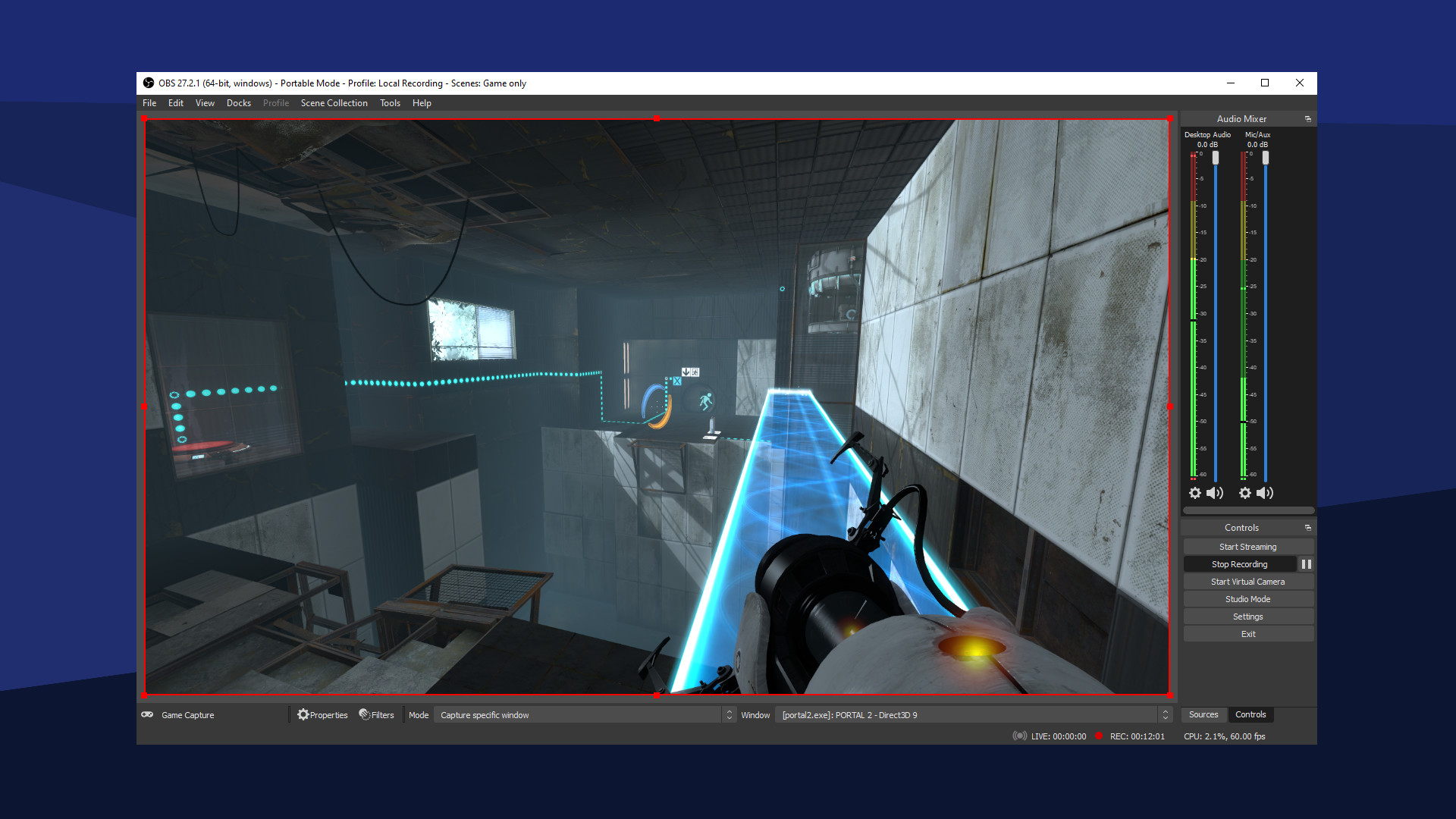
Twitch and YouTube streamers are the obvious group, and most of the big names run OBS or a fork of it. Beyond that, esports tournament organisers use it for broadcast graphics on smaller events, teachers record lectures with it, podcasters capture multi-track audio, and developers record bug reproductions. The common thread is wanting pro output without a licence fee.
The plugin ecosystem is where the long tail lives. Advanced Scene Switcher automates scene changes by window, time or idle state. Move Transition animates sources between scenes. Source Record lets you capture one source to its own file. The community has built hundreds of these, and most plugins are free as well.
Is OBS free? Licensing and funding
Yes, in every version and on every platform. The OBS Project funds development through donations on Open Collective and through corporate sponsors that include the major streaming platforms and hardware vendors. There is a Steam listing too, which is also free and simply updates through Steam.
The products that charge money are forks and overlays built on top of OBS, such as Streamlabs Desktop. Those add a paid tier for themes and cloud features. The OBS underneath them costs nothing.
System requirements by platform
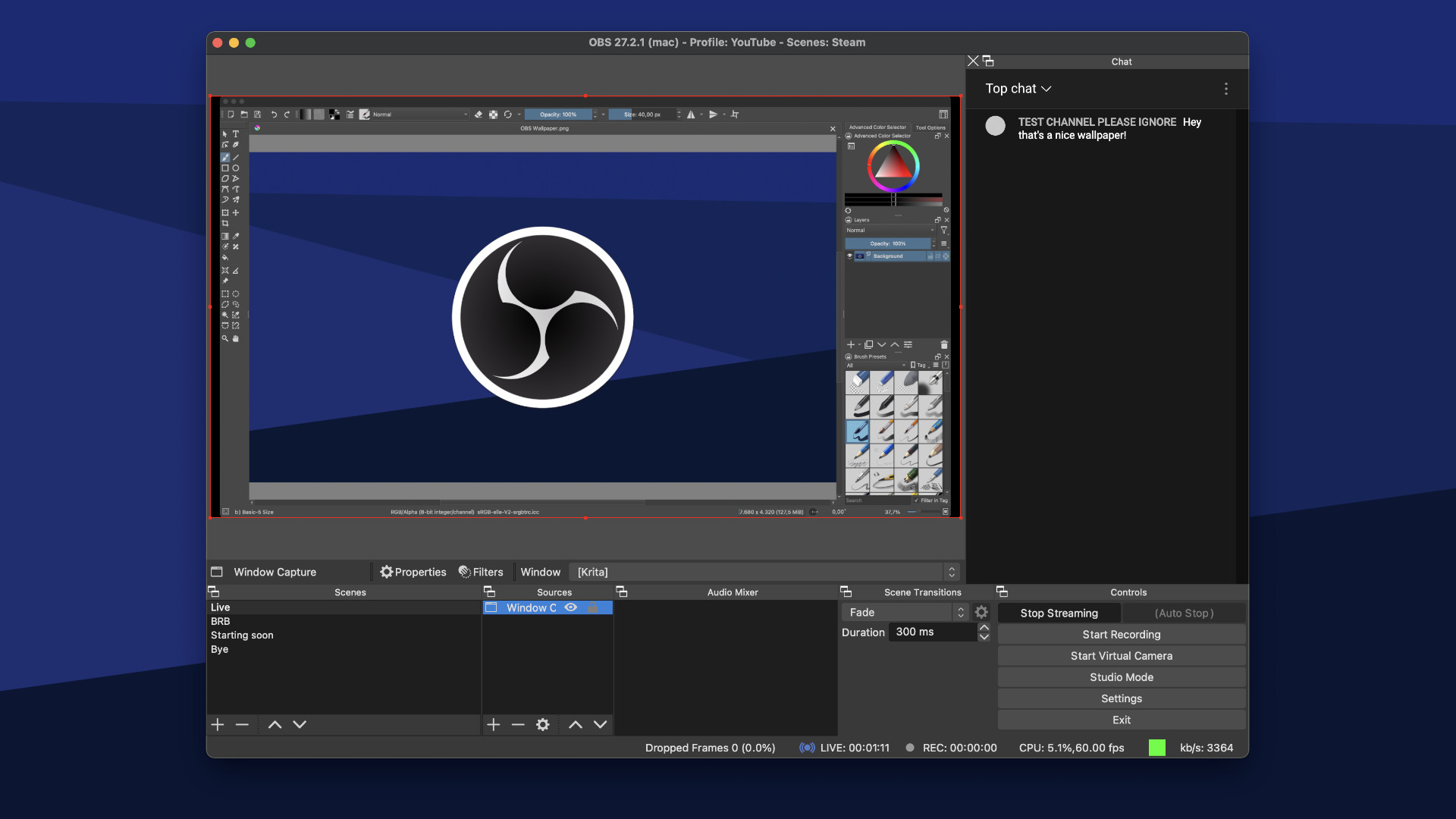
OBS keeps dropping old operating systems as each major version ships, so check this against the version you plan to install.
| Platform | Minimum OS | Graphics | Notes |
|---|---|---|---|
| Windows | Windows 10 (1809) or 11, 64-bit | DirectX 11 capable GPU | 32-bit builds ended with OBS 28 |
| macOS | macOS 11 Big Sur or later | Metal-capable Mac | Native Apple Silicon build since OBS 28 |
| Linux | Ubuntu 22.04 or equivalent | OpenGL 3.3 | Flatpak is the officially recommended package |
Any mid-range “gaming laptop” from the last five years clears this. The real limit is encoder support, not the OS floor.
How to download and set up OBS safely
Stay safe
Only download OBS from obsproject.com or the OBS Project GitHub releases page. Search-ad campaigns in 2023 pushed look-alike “OBS” sites that shipped info-stealing malware. Also never open Settings > Stream while live; your stream key is on that page.
First launch runs the Auto-Configuration Wizard, which picks a resolution, frame rate and encoder from a short bandwidth test. Accept it, then revisit Settings > Video to confirm the base canvas matches your monitor. On macOS, OBS will ask for Screen & System Audio Recording permission under System Settings > Privacy & Security; display capture stays black until you grant it.
Your scenes, profiles and hotkeys live in a config folder: %APPDATA%obs-studio on Windows, ~/Library/Application Support/obs-studio on macOS, and ~/.config/obs-studio on Linux (Flatpak uses ~/.var/app/com.obsproject.Studio/config/obs-studio). Back that folder up before any major upgrade and your whole “streaming setup” moves with you.
How to update OBS Studio
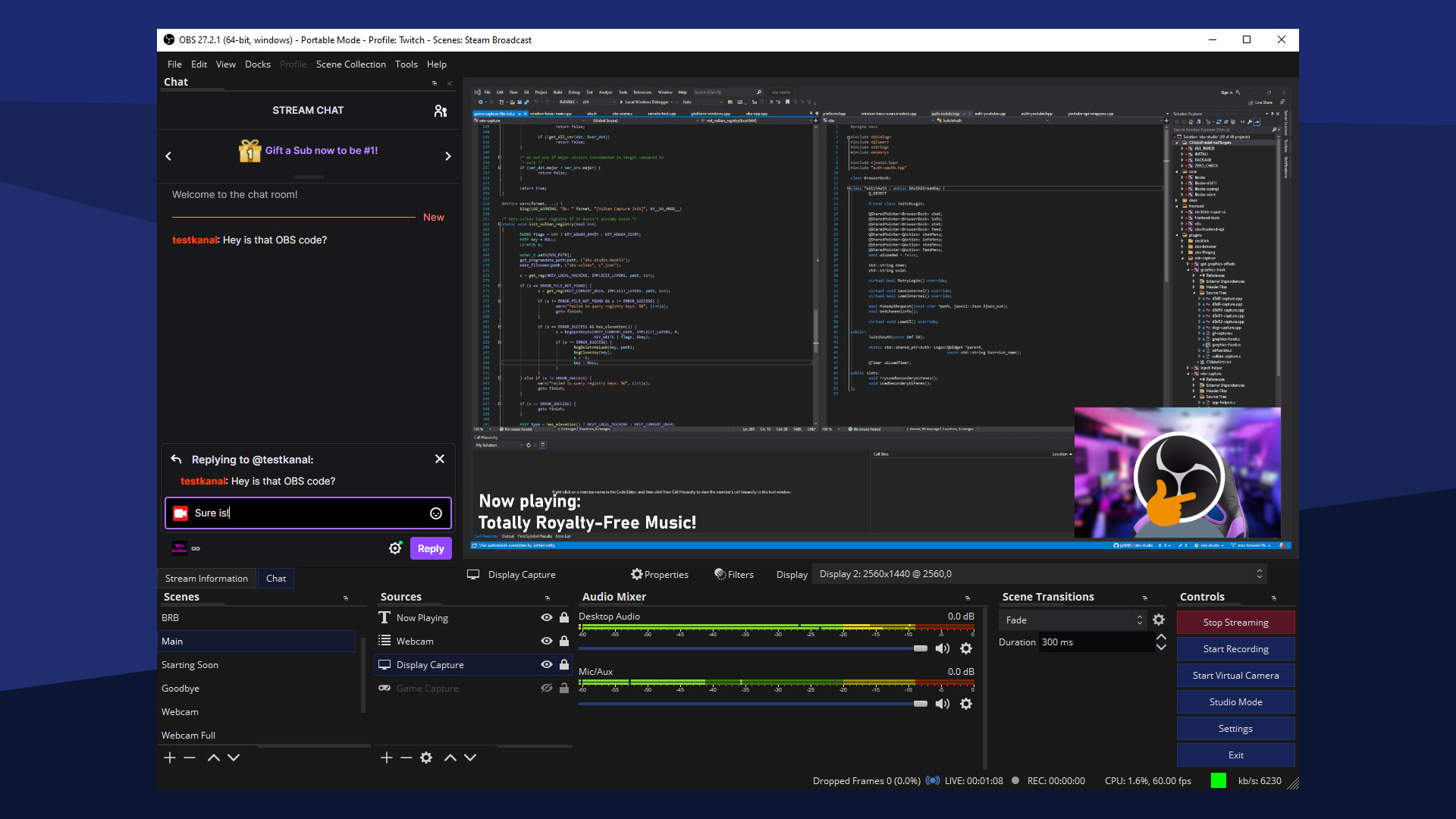
Quick steps: update OBS on Windows or macOS
- Open OBS and close any active stream or recording.
- Click Help > Check For Updates.
- Read the release notes, then click Update Now.
- Let OBS restart and reopen your scene collection.
- Test Game Capture and your mic before going live.
Windows and macOS
The built-in updater handles both. OBS also checks on launch by default; you can turn that off under Settings > General > Automatically check for updates on startup. The Steam build updates through Steam instead and does not show the Help menu option.
Linux
| Install method | Update command or path |
|---|---|
| Flatpak | flatpak update com.obsproject.Studio |
| Ubuntu PPA | sudo apt update && sudo apt upgrade |
| Distro repository | Normal package manager update, often a version behind |
| Snap | sudo snap refresh obs-studio |
Release cadence and what versions mean
OBS ships a major version roughly twice a year with point releases in between. OBS 30.0 landed in November 2023, 30.2 followed in July 2024 with Hybrid MP4 and Enhanced Broadcasting, and OBS 31.0 shipped in December 2024, with 31.1 arriving in 2025. Each major release tends to break a few plugins for a week or two while authors recompile, so if a plugin is load-bearing for your stream, wait for its update before you take the OBS one.
Beta and release-candidate builds appear on GitHub first. They are fine for a second machine, not for a channel with a schedule.
When an update breaks something
Most post-update problems trace back to plugins or driver mismatches. The fastest diagnosis is Help > Log Files > Upload Current Log File, then paste the resulting URL into the OBS log analyzer on obsproject.com. It flags missing plugins, wrong encoder settings and dropped frames in plain language.
| Symptom | Likely cause | Fix |
|---|---|---|
| Plugin missing from Filters or Tools menu | Plugin built for old OBS version | Reinstall the plugin’s newer build |
| Game Capture shows black | Hook blocked or OBS not admin | Run OBS as administrator, or use Window Capture |
| Encoder option disappeared | GPU driver older than OBS expects | Update NVIDIA, AMD or Intel driver |
| Scenes vanished after update | OBS opened a different profile or collection | Check Scene Collection and Profile menus |
| Mac display capture black | Permission reset after update | Re-grant Screen Recording in Privacy & Security |
FAQ
Is OBS Studio really free with no catch?
Yes. It is licensed under the GPL, has no paid tier, no watermark and no time limit. Paid products with OBS in the name are forks or add-ons, not OBS itself.
Does updating OBS delete my scenes?
No. Scenes, profiles and hotkeys live in a separate config folder that the updater does not touch. Back it up anyway before a major version jump.
How do I know which OBS version I have?
On Windows and Linux, open Help > About. On macOS, use OBS > About OBS. The version number also appears in the window title bar.
Can I stream to Discord with OBS?
Not directly as a stream destination. Start the Virtual Camera in OBS, then select OBS Virtual Camera under User Settings > Voice & Video > Camera in Discord. Audio needs a separate route, such as a virtual audio cable.
Should I use OBS or Streamlabs Desktop?
OBS is lighter, updates faster and supports more plugins. Streamlabs bundles overlays and alerts in one install at the cost of higher CPU use. Start with OBS and add a browser source for alerts.